Data Encryption: How to Perform the One-Time Local Approval of the Extension
Last updated: June 10, 2026
Purpose
To locally approve the Google connection and extension on a machine for the first- and only-time
Environment
Google Chrome: All versions
Google Workspace: Gmail
Nightfall Extension: All versions
Resolution
Enable the Extension
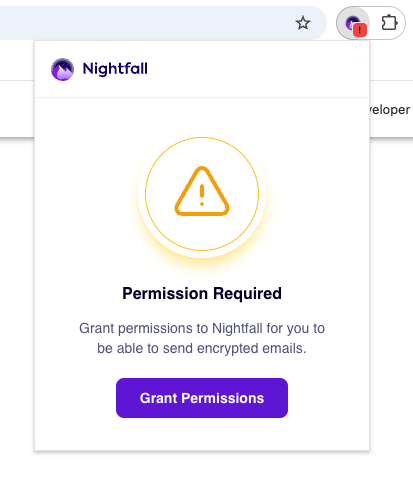
Click on the Nightfall extension at the top-right of the Chrome browser.
NOTE: It is normal to see a red square with a black exclamation mark.
Click the "Grant Permissions" button.
Follow the prompts to enable the Nightfall DLP extension.
Connect the Gmail Account
This requires the user to send their very first email with data encryption being enabled.
Send a real or test email.
Log into Gmail
Click Compose
Type out the email
Send the email
After sending, follow the prompts.
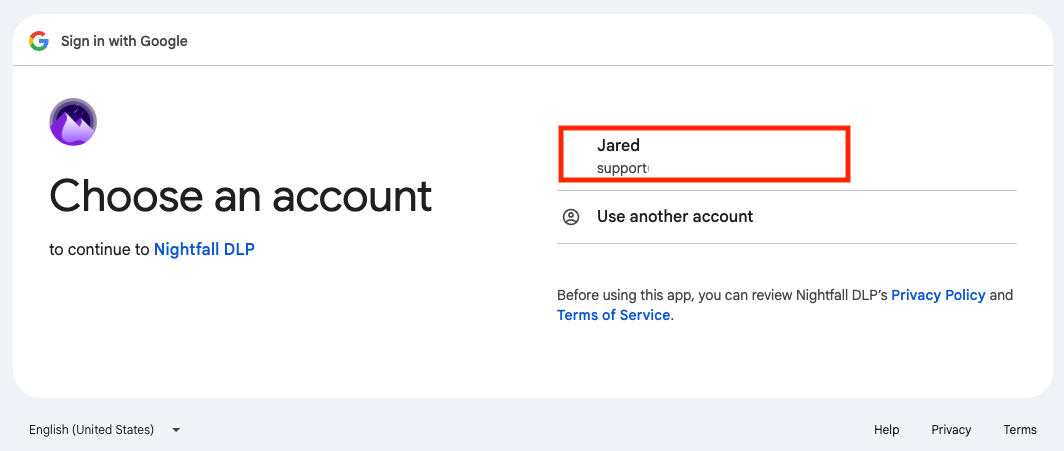
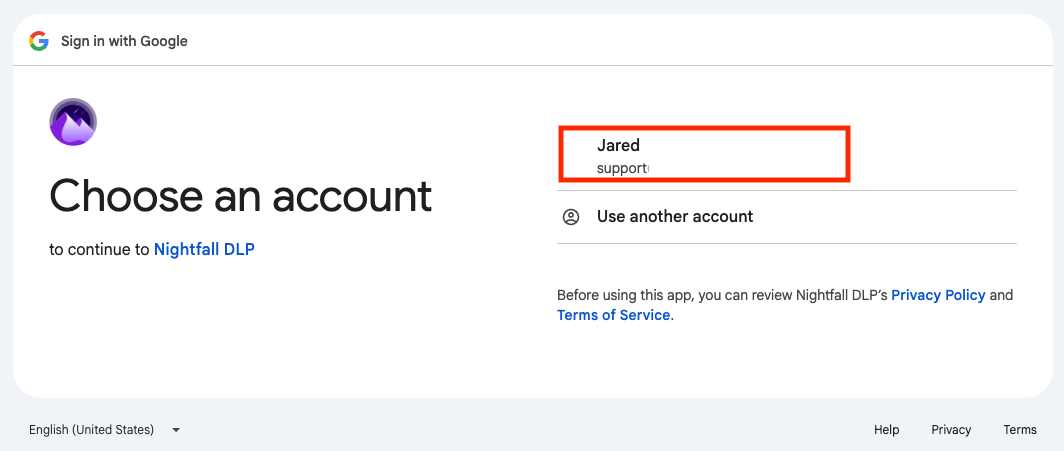
Select your email when prompted.
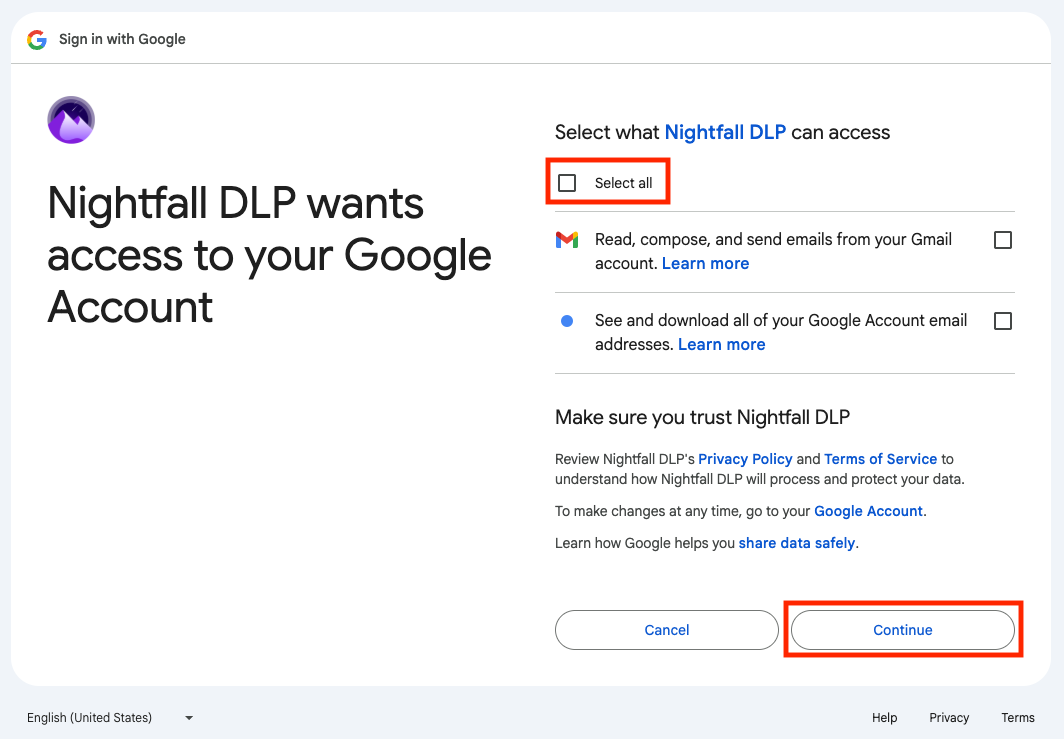
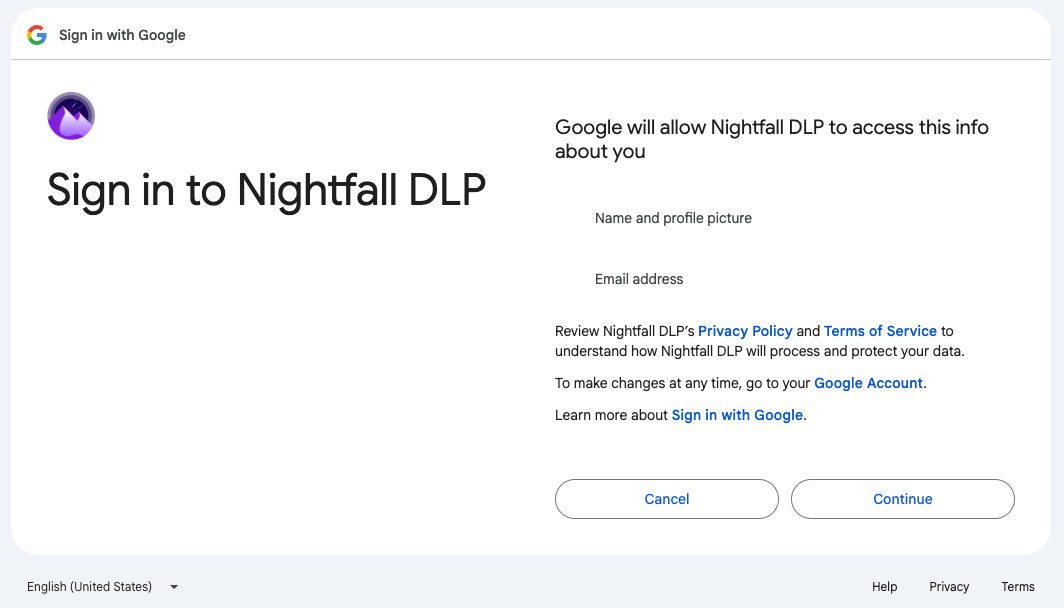
Click "Continue" to allow Nightfall DLP to access your work info related your email.
Lastly, checkmark "Select All" and click "Continue".